

Today’s tutorial is a relatively short and simple one. If you’ve developed a few WordPress websites you might have encountered the need to redirect certain pages to others. We’re not talking about redirecting every 404 error, more the redirection of pages that WordPress generates (like the blog page or Woocommerce category pages) to those that you have designed yourself. [AnythingPopup id=”2″]
Why would I want to redirect?
If you are using a theme like Divi you’ll know that you can make your main pages (e.g. your home page) as beautiful and consistent as you like but the visual builder and other Divi functionality cannot be applied to some of your pages. This means you can have a coherent and appealing website with some really out of place WordPress generated pages.
It’s in these instances that you may want to redirect a webpage to one that you have custom designed. We’re using a plugin to do this within this tutorial however if you like to minimise your use of plugins you can see our alternative guide by clicking here.
How do I do it?
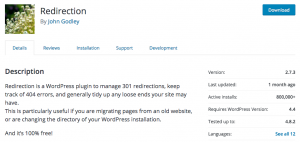
Firstly you will need to download the FREE redirection plugin by clicking here. Once installed it is simply a case of navigating to “Tools” on the left hand side of your WordPress dashboard where you will find the redirection settings page.
For this example we’ll be redirecting the standard WordPress generated blog page to a custom page that we’ve customised using Divi and its blog module because we don’t want to spend time editing the respective .php file using shortcodes. We’ve created a page with the URL https://liampedleydesign.co.uk/news and styled it to our liking using the visual builder and some custom CSS – much better than the standard blog page generated by WordPress.
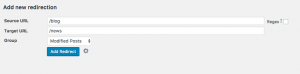
All we need to do is enter the page we want to be redirected away from in the Source URL box (in this case /blog) to the new page that we have created (in this case /news). And that’s it, your page should now redirect to your custom content.
We hope this has helped, let us know if we can go through anything further.