

This guide is for mac users only. If you are more of a windows kind of person you’ll need to go here.
Most fledgling website designers that have decided to use WordPress as their tool of choice will have experienced this in the early days. You buy your domain name and website hosting and start creating your site online.
This is great if you have the cash to spend upfront – you set up these services and away you go. But what happens when you take that next step and start getting clients on board? Often these parties won’t want to pay for hosting and a domain upfront before they see the website in all it’s glory.
This is where MAMP or XAMP comes in. MAMP allows you to develop as many websites as you like locally, using a server that runs on your computer. Through MAMP you can effortlessly create your database and install WordPress and begin developing in minutes.
Why develop websites locally using MAMP?
- MAMP allows you to develop websites offline, meaning you do not need an internet connection. This is great if you are on the go, but even better because you are not beholden to your internet speeds when refreshing pages and installing plugins during development. From your perspective everything is exactly the same as developing online (same interface, same process) but you’ll save hours in combined loading times, the more websites you develop. Going travelling? No problem, you don’t need access to the internet to carry on working!
- As mentioned above, you don’t need to invest in hosting or a domain to begin building your websites. This is useful if you have a few ideas that you want to play around with, without having to commit financially.
- MAMP is also useful to demo websites to clients. They can browse the site and experience your work as they normally would however the overall project remains in your control until payment is made.
- You can develop as many WordPress websites locally as you need, and access them all instantly. You’ll also take advantage of the 5-minute WordPress install that we all know and love.
- Altering any back end files does not require any ftp client or logging on to your host’s cPanel. You can find these files as simply as you would navigate your computer normally and can opt where these are stored for your local sites.
How to setup your first website using MAMP
So now you’ve been sold the benefits, how exactly do you begin using MAMP?
Step 1 – Download MAMP
This bit’s quite easy, simply go to this website, download and install the application.

Step 2 – Find Your htdocs Folder
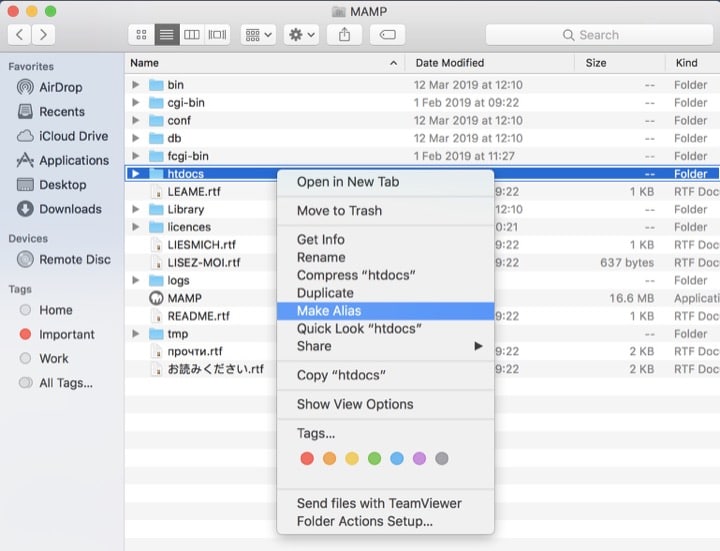
Once you’ve installed MAMP, it’s time to find the folder you’ll be using to contain all the website files that are normally stored with your hosting provider. We are looking for the htdocs folder which can be found by going to Applications > MAMP.

Within the MAMP application you’ll find lots of different folders. The only one we’re interested in is the htdocs folder. This is the only folder we’ll ever need to work with, so if you like for convenience you can right-click and make an alias. Move this shortcut to your desktop to easily access the htdocs when ever you need it.
Step 3 – Create a new website folder
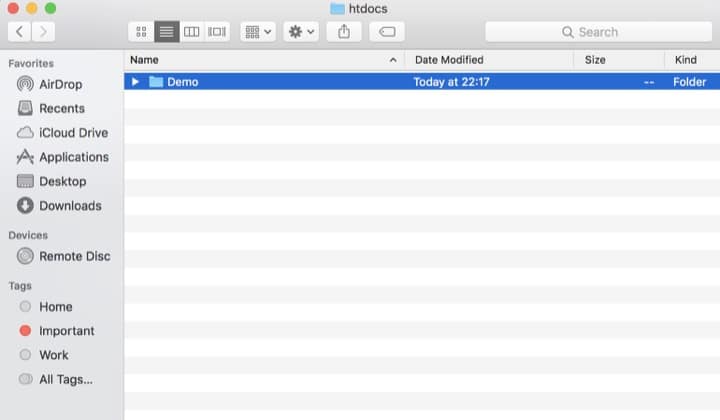
Once you’ve found the htdocs folder, open it and create a new folder within it. The name of this folder will determine how we refer to it when creating a website, so it’s best practice to have no spaces and to keep it simple.
Step 4 – Grab WordPress
Simple so far! Now that we’ve got a folder to house all of our websites, we just need to hop onto the wordpress.org website and download the latest version of WordPress.

Armed with your zip file containing WordPress, navigate back to the folder you created within htdocs. Inside of this, copy your zip file and unzip it. If this creates a new folder called “wordpress”, move all of the WordPress files back up into original folder.

Perfect! So we now have a blank WordPress ready to be installed. The one thing we are missing is a database.
Step 5 – Creating a database
For this step we’ll be opening MAMP for the first time, so go ahead and open the application and click “Start Servers”.

This will load the MAMP WebStart page and everything that you need to manage your local server. From here we need to click “Tools” > PHPmyadmin.
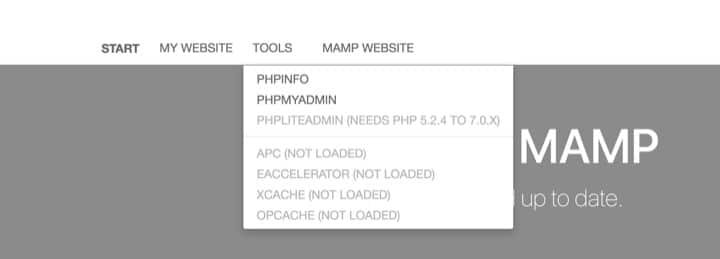
Once you’re in, don’t panic. It looks confusing if you’re not familiar with PHPmyadmin but don’t worry because we’ll only need to stay for one thing. In the top-left menu bar, click “Databases”.

Now you’ll see a place whereby you can create a new database. For ease, we normally name the database the same as the folder we created in previous steps. Always use all lowercase characters and avoid special characters and spaces.

Step 6 – Finally install WordPress
Now we have everything we require to successfully install WordPress. To get to the installation page, we simply need to type in the URL (the name of the folder) into our browser window. This follows the pattern: localhost:8888/*NAME OF YOUR FOLDER*.

Once you’ve selected your language, you’ll need to enter the details of the website we are creating. The name of the database we created goes in the first box, followed by “root” for the username and password. “root” is always the login credentials (username and password) when we are working on a local server. You don’t need to change any of the other details.

Once you press submit you’ll be guided through the installation and will have successfully created a new WordPress website on our local server – awesome! Now you can manage your website as you normally would if it was hosted with a hosting provider.
Final thoughts
And that’s it. We hope you’ve found this guide useful. As always, if you need any guidance please do not hesitate to get in touch!